User Interface
Running voicepad (or uvx voicepad) opens the interactive terminal interface. It is built with Textual and runs entirely in your terminal.
Layout
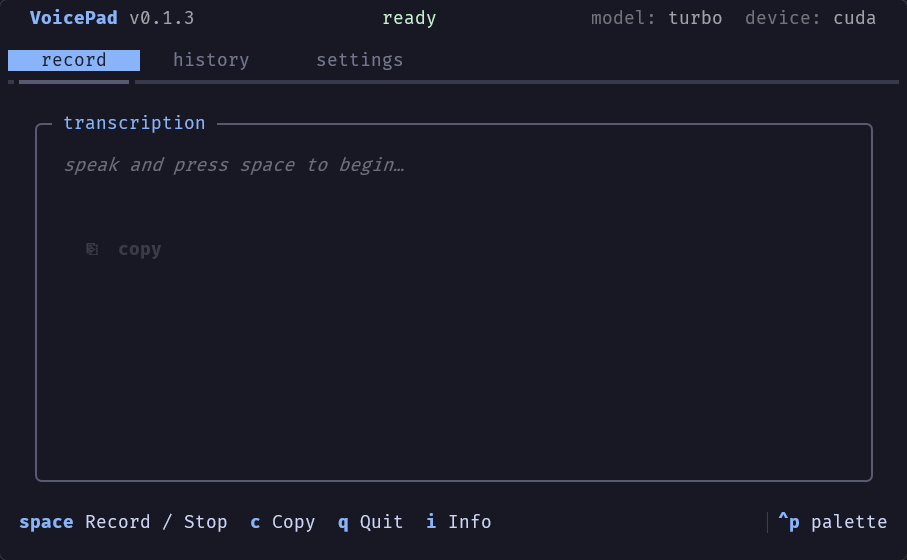
The interface has a header bar at the top, three tabs in the middle, and a keyboard shortcut bar at the bottom.
Header Bar
The header shows the app name, version, current status, and the active Whisper model with its compute device (cuda or cpu).
| Status Colour | Meaning |
|---|---|
| Green | Ready to record |
| Red | Recording in progress |
| Yellow | Transcription running |
Keyboard Shortcuts
Global Shortcuts
These shortcuts work in any tab:
| Key | Action |
|---|---|
| Q | Quit VoicePad |
| I | Open the info panel |
| Ctrl+P | Open the command palette |
| Tab | Switch between tabs |
| Esc | Close a modal or dismiss |
Tab-Specific Shortcuts
Different shortcuts are available depending on which tab you're in:
Record Tab
| Key | Action |
|---|---|
| Space | Start or stop recording |
| C | Copy the current transcription to clipboard |
History Tab
| Key | Action |
|---|---|
| T | Retranscribe the selected recording |
| D | Delete the selected recording |
| V | Open the selected recording in your audio player |
| M | Open the selected markdown file in your editor |
| O | Toggle sort order (ascending/descending) |
Settings Tab
| Key | Action |
|---|---|
| S | Save settings |
| P | Open config directory in file explorer |
Tabs
Record
The main tab. Press Space to start recording. While recording, a live timer shows in the status bar. Text appears in real time via streaming transcription as you speak.
When you stop recording, the final transcription appears in the panel. Press C or use the copy button to copy the text to your clipboard.
History
Browse all past recordings. Select a recording from the left panel to view its full markdown transcription on the right.
Available actions:
- Retranscribe (T): Re-run the Whisper model on the selected WAV file. Useful when you switch to a more accurate model after recording.
- Delete (D): Remove the selected recording and its transcription.
- Open recording (V): Open the WAV file in your default audio player.
- Open markdown (M): Open the transcription file in your default text editor.
- Sort (O): Toggle between ascending and descending order.
Settings
Configure VoicePad without editing any files. Changes are saved to your global config file when you press S or click Save.
Available settings:
| Setting | Description |
|---|---|
| Recordings path | Where WAV files are saved |
| Markdown path | Where markdown transcriptions are saved |
| VAD model path | Where Voice Activity Detection model is stored |
| Transcription model | Whisper model to use |
| Input device | Microphone to record from |
| Theme | UI color theme |
| Global hotkey | System-wide keyboard shortcut for recording |
Quick actions:
- Press P to open the config directory in your file explorer
- The config file path is shown at the top of the settings panel
Curated settings UI
The Settings tab intentionally shows a simpler model list than the full config file. Advanced model IDs and lower-level transcription behavior can still be changed by editing voicepad.yaml directly.
See Configuration for more details on each setting.
Info Panel
Press I to open the info panel. It shows the version, privacy guarantees, and links to the GitHub repository and sponsor page.